TrueNAS Scale required Apps for Truecharts

This post was written when TrueNAS Scale used TrueCharts for app management. TrueCharts discontinued support for TrueNAS Scale following the removal of Helm chart support in TrueNAS Scale 24.10 (Electric Eel). This post is retained for historical reference only. For the current approach see running Docker on TrueNAS Scale.
If you plan to install any Truecharts, there are several recommended prerequisites:
- Ensure you have configured the required pool and installed the catalogs.
- Install OpenEBS, (which is necessary for Dragonfish).
- Install Heavyscript and schedule it to run as a Cron Job.
- Install Prometheus-operator.
- Install Cloudnative-PG Operator.
While the above are not mandatory for all applications, they should be installed first if needed. Therefore, it makes sense to set them up before installing any other apps
Install OpenEBS
If you're using the Dragonfish (24.04) version of TrueNAS SCALE, you'll need to install OpenEBS to provide PVC storage. While I would recommend using host path storage, it is not supported by TrueCharts.
First, you must create a dataset specifically for OpenEBS, which should be different from the iX-applications dataset. If you've followed my setup, you can utilize the 'appdata' dataset. In TrueNAS SCALE, navigate to 'Datasets' and select the 'appdata' dataset. Then click Add Dataset.
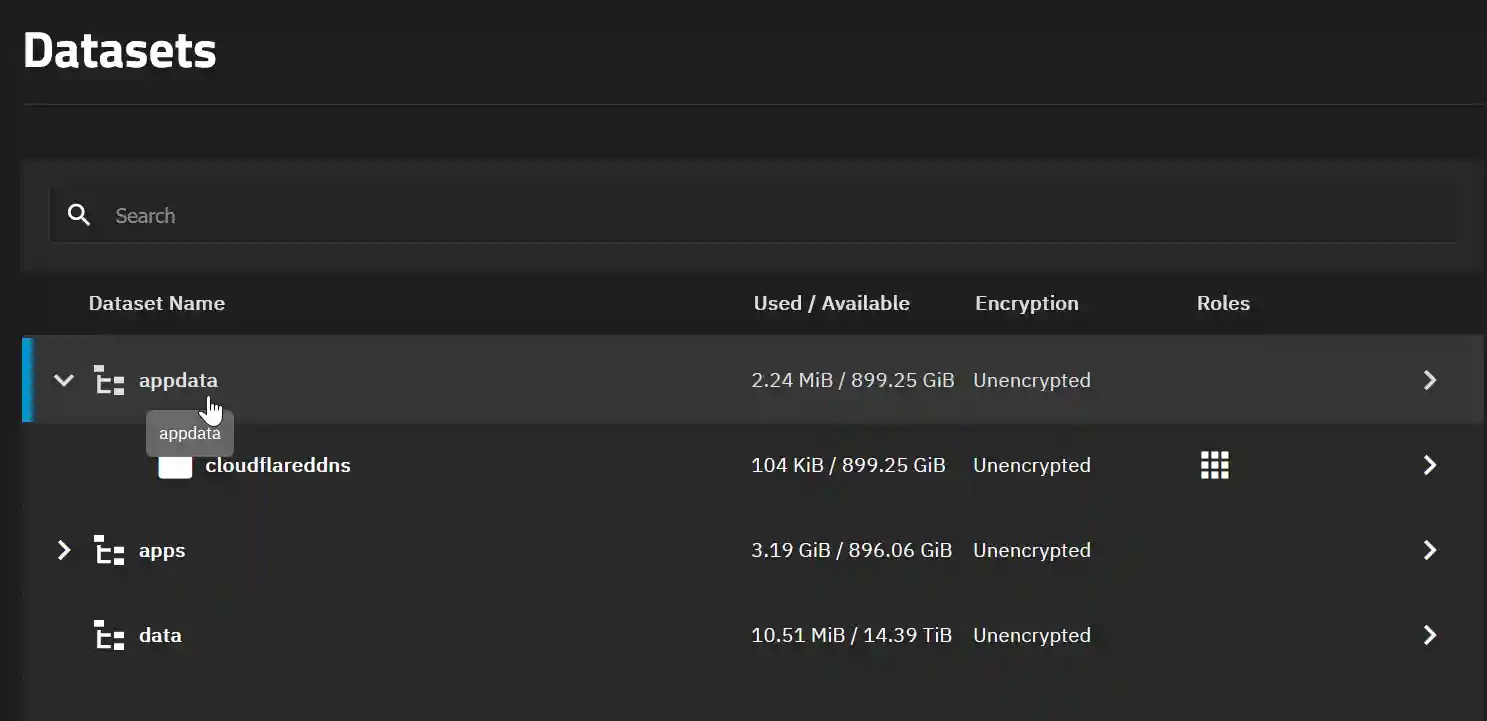
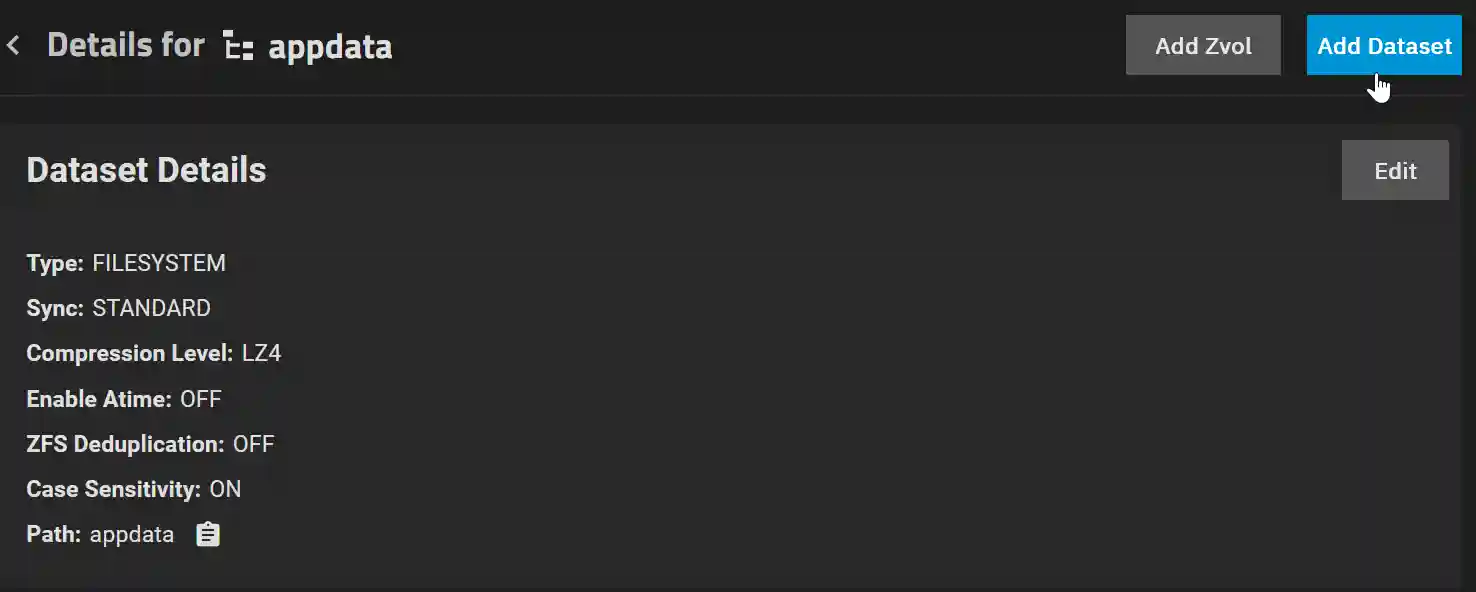
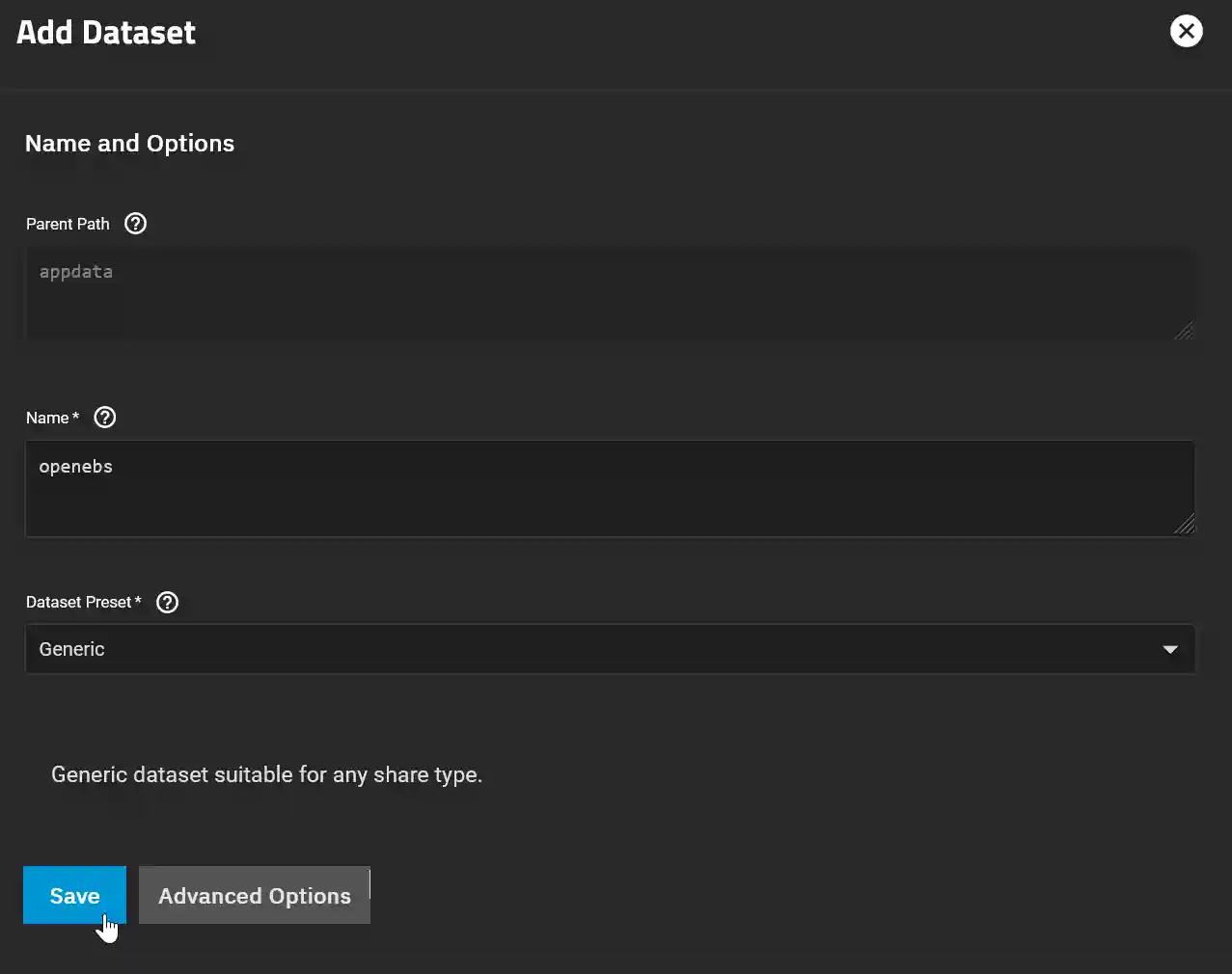
Name the dataset 'openebs' and click 'Save'. Then, click 'Edit' next to 'Permissions'.
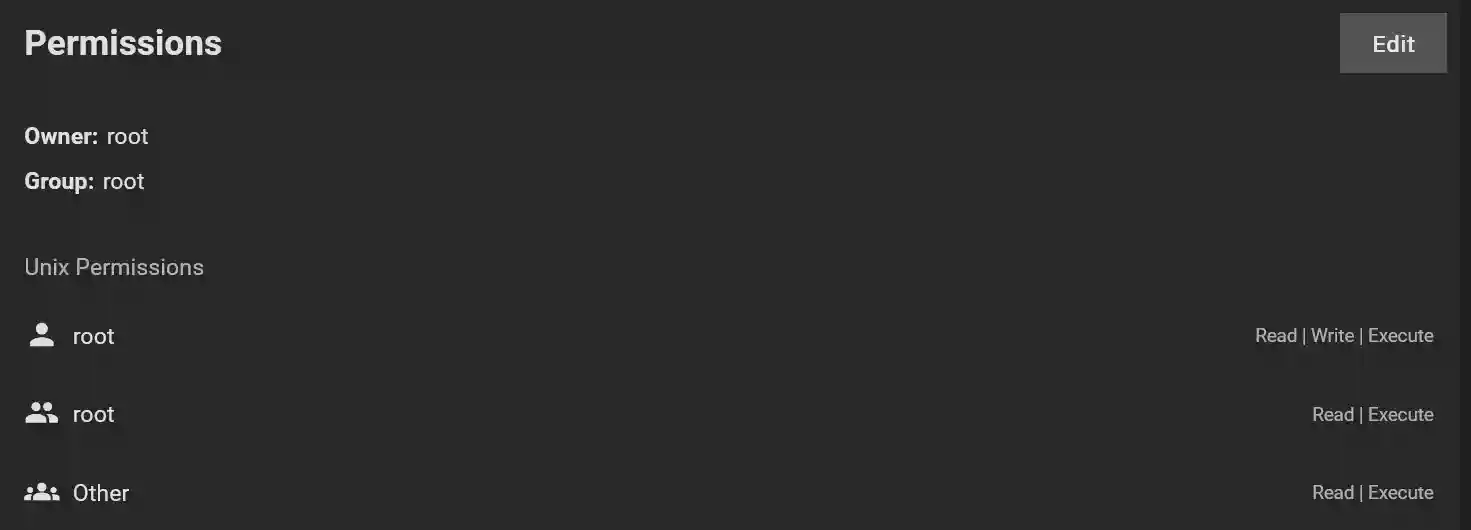
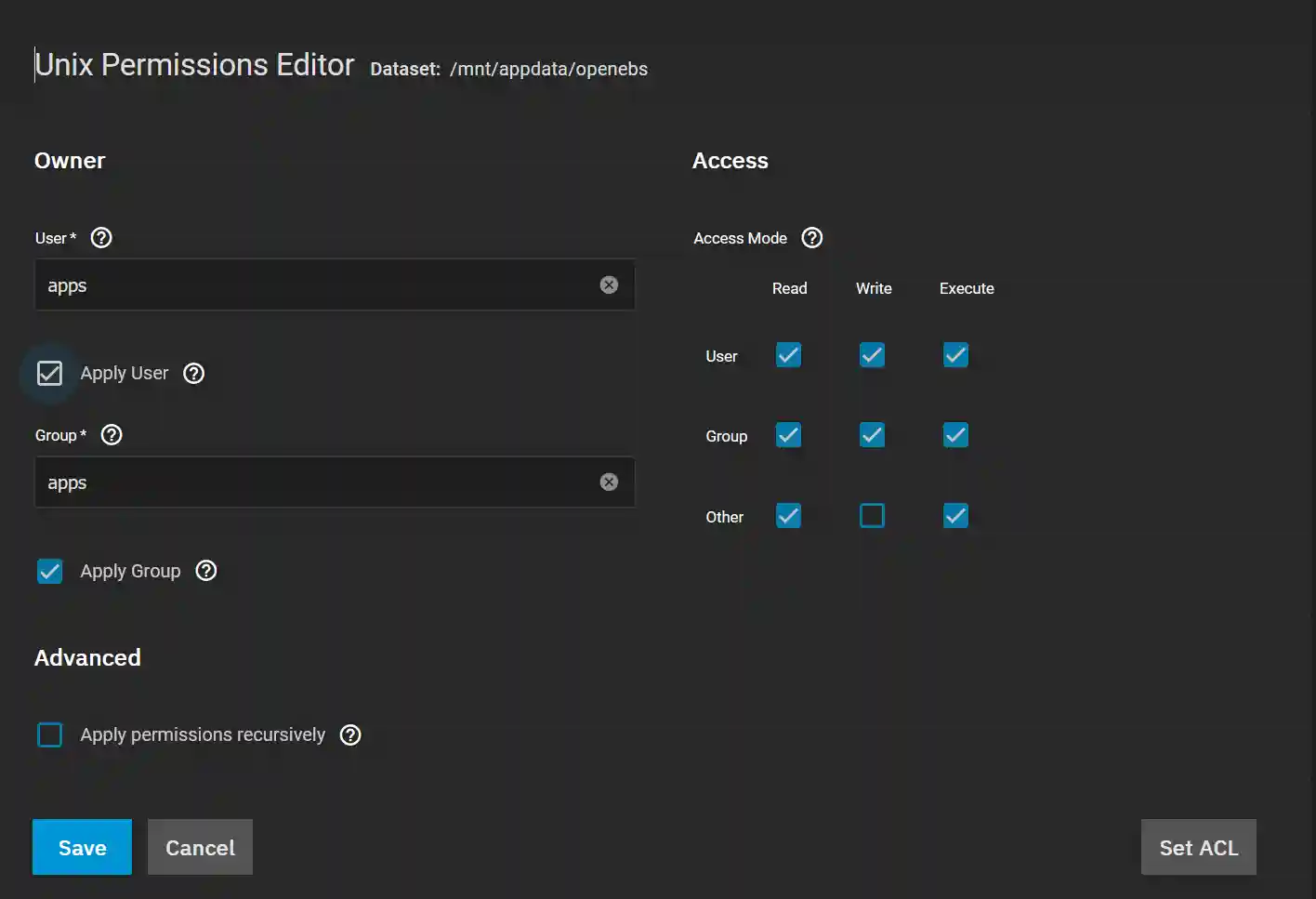
In the resulting form, change both "User" and "Group" to "apps", ensuring that "Apply User" and "Apply Group" are selected. Also, grant write permissions to the Group. Finally, click "In the resulting form, change both "User" and "Group" to "apps", ensuring that "Apply User" and "Apply Group" are selected. Also, grant write permissions to the Group. Finally, click "Save".".
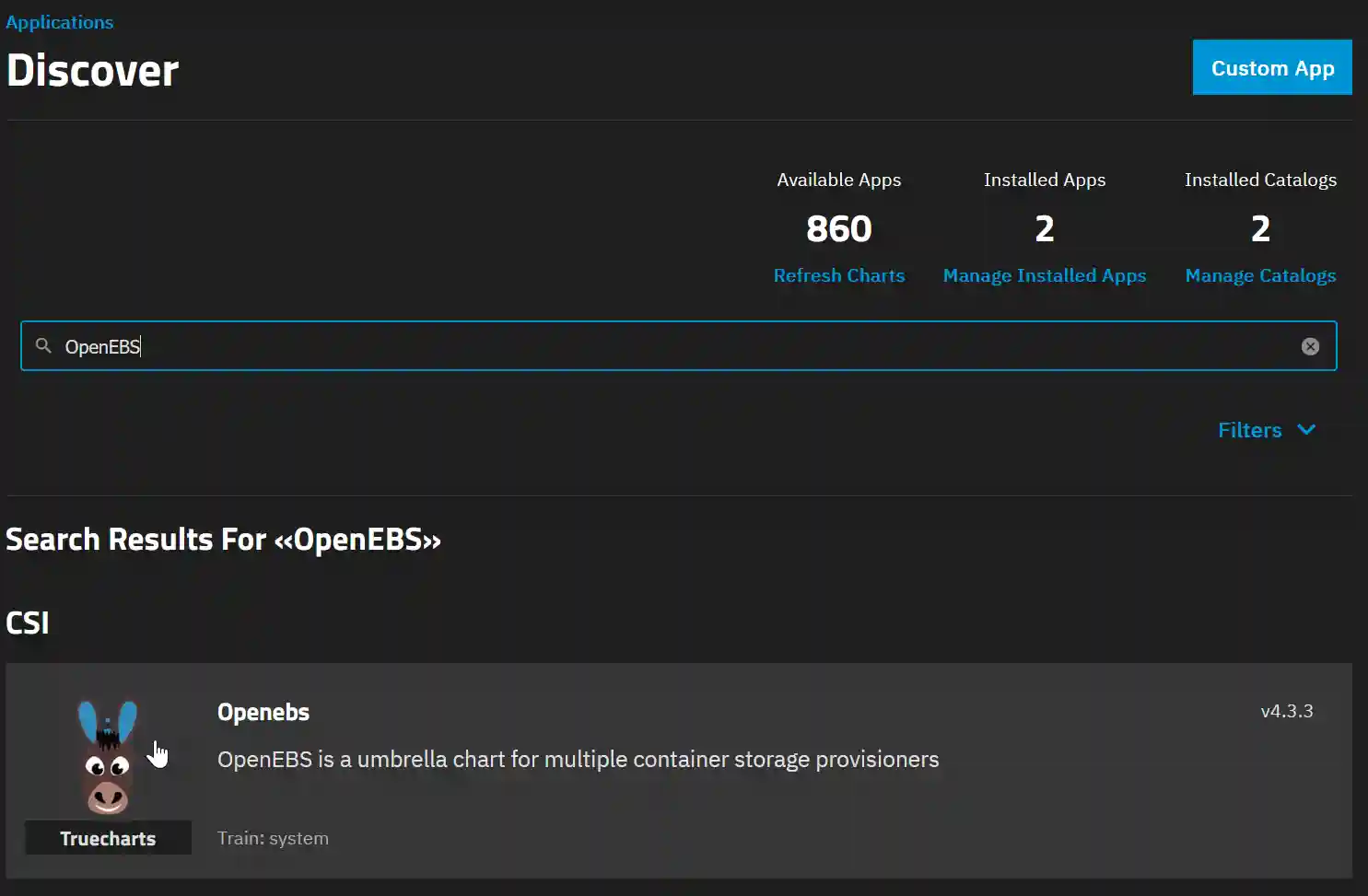
Click on "Apps," followed by "Discover apps," and enter "OpenEBS" in the search bar. Then, click on the app and select "Install."
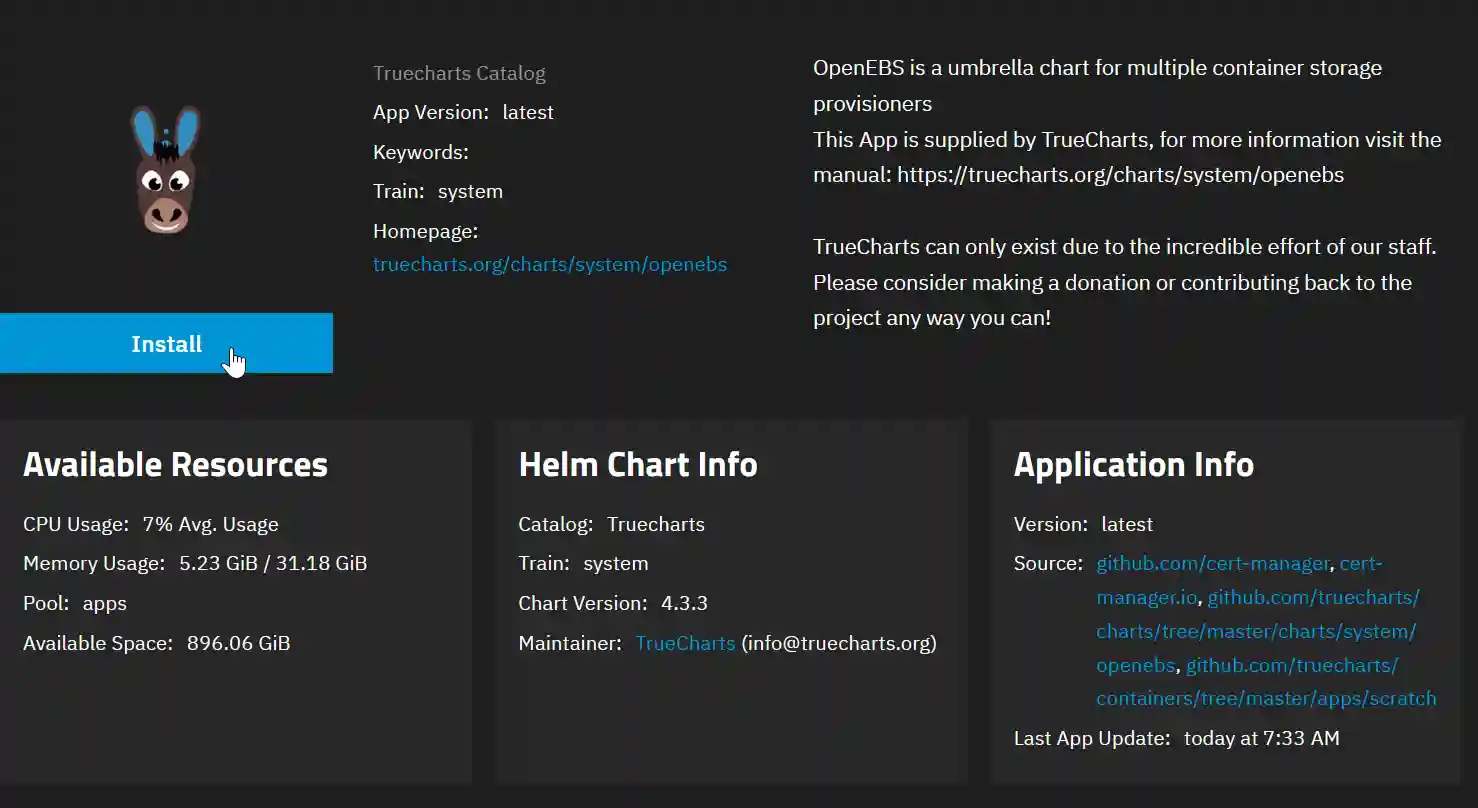
The only setting you need to adjust is the Storage and Permissions Pool/Dataset, which should be set to the path of the dataset you created earlier. In this instance, it is 'appdata/openebs'. Be sure to check for typos, as there is no verification process to confirm that the path exists. If there is a typo in the path, you will need to delete the app and reinstall it. After verifying the settings, click "Install." If all goes according to plan, you should see the app deploying and subsequently running.

Install Heavyscript
HeavyScript provides numerous features that enhance the user experience and maintenance of applications on SCALE, developed by heavybullets8.
This document outlines the non-privileged method for installing the script. Currently, there is a known issue with installation on Dragonfish.
Process for TrueNAS Scale Cobia
Log in to a command prompt as admin and run the following command.
curl -s https://raw.githubusercontent.com/Heavybullets8/heavy_script/main/functions/deploy.sh | bash && source "$HOME/.bashrc" 2>/dev/null && source "$HOME/.zshrc" 2>/dev/nullAs you are running the script with minimum privaleges you will get a warning. If everything proceeds smoothly, you should see:
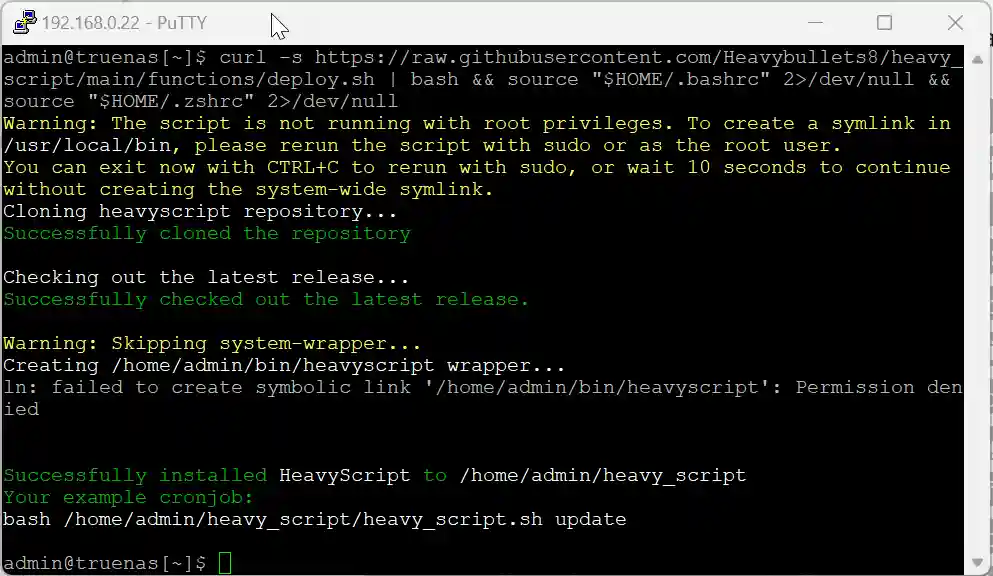
Note the error and the example cron job command.
The error is caused by running the script without root privileges. To create the necessary link that allows the script to be run using the command "heavyscript", execute the following command:
(If necessary, modify the command to match the example in the above screenshot.)
sudo bash /home/admin/heavy_script/heavy_script.shYou should then briefly see:
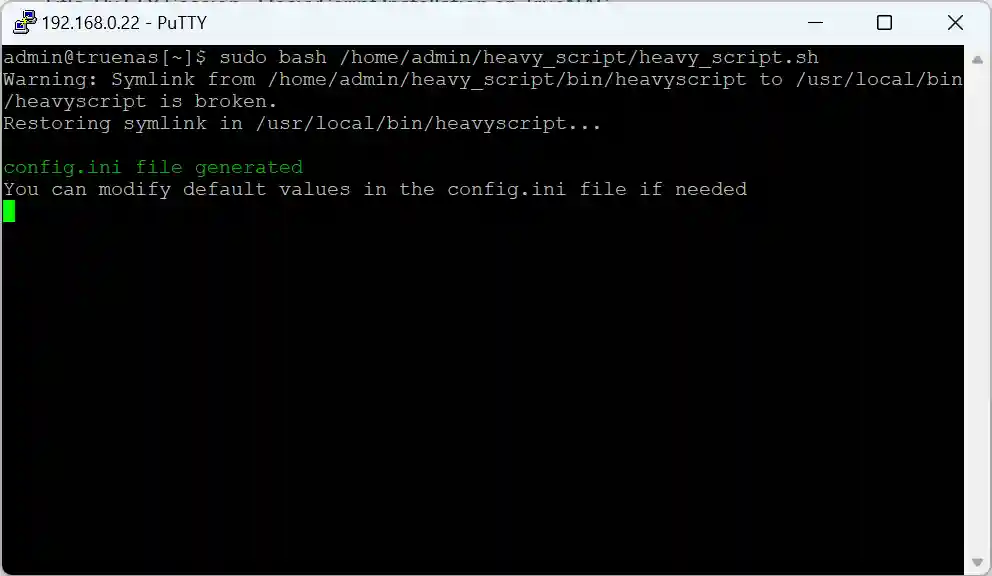
This will be followed by the heavyscript menu.
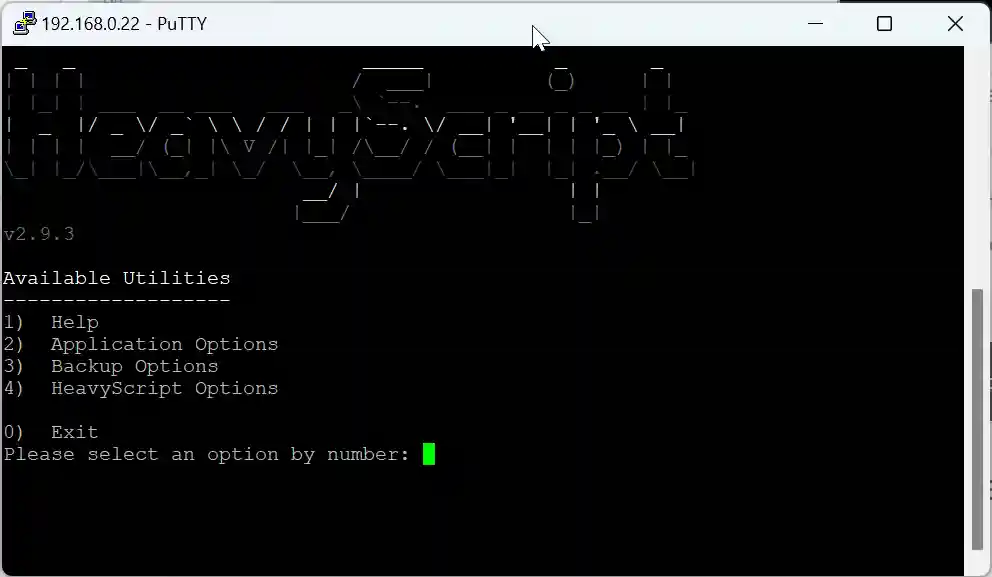
This completes the instalation of heavyscript. You should now be able to run the script with the comand heavyscript. If you need heavyscript to execute commands you will have to use the sudo comand.
sudo heavyscriptProcess for TrueNAS Scale Dragonfish
As of the Dragonfish Release Candidate, the installation process for heavyscript has changed slightly.
Execute the same command as above:
curl -s https://raw.githubusercontent.com/Heavybullets8/heavy_script/main/functions/deploy.sh | bash && source "$HOME/.bashrc" 2>/dev/null && source "$HOME/.zshrc" 2>/dev/nullThe output will be:
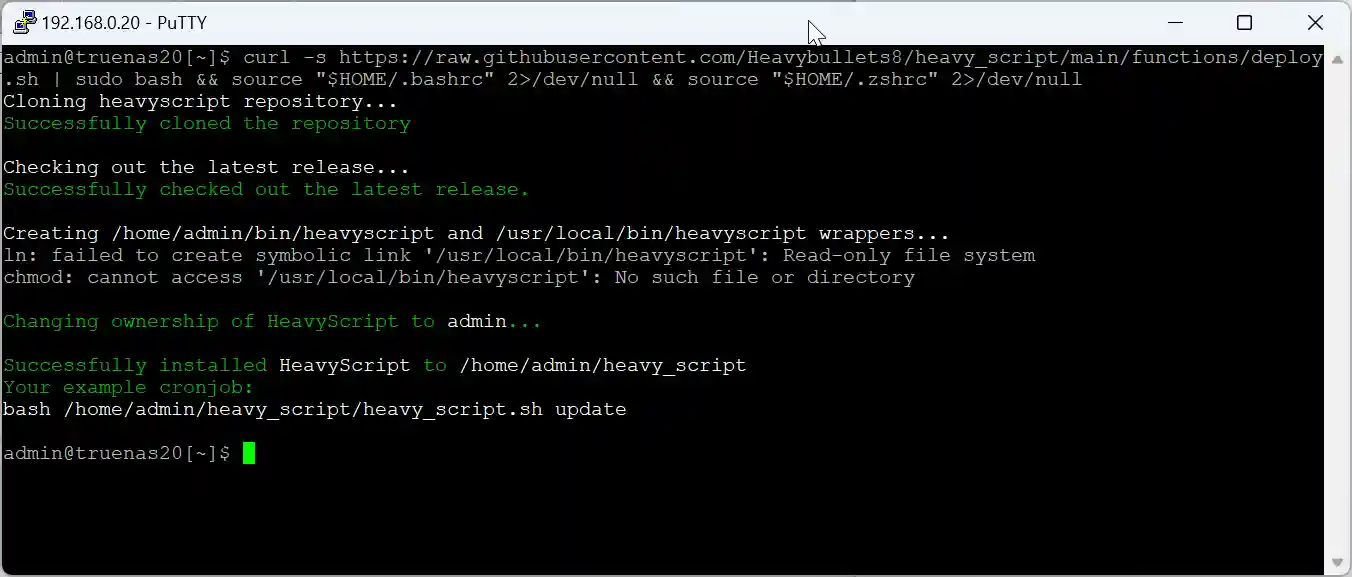
The script cannot write to /usr/local/bin, so there is an error. Until there is an update to heavyscript, the easiest way to run the script is to use the full path.
(If necessary, change the command to reflect the example in the above screen capture.)
Copy and execute this command:
sudo bash /home/admin/heavy_script/heavy_script.shThe first time you run this you will get an error:
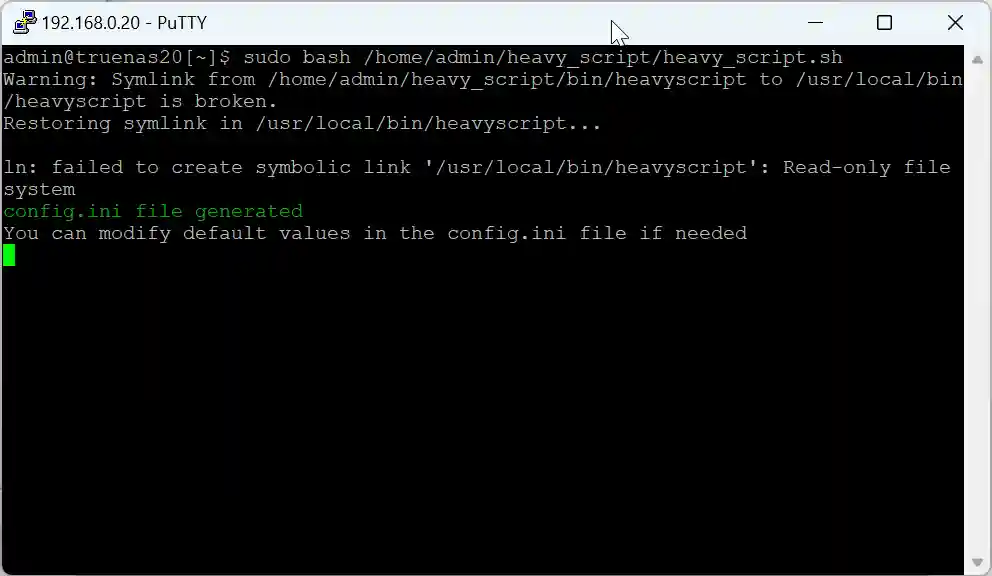
From then on the script will run without error.
Setting HeavyScript to run every day with Cron Job
You can configure HeavyScript to run daily and perform a variety of tasks. Heavybullets8 recommends the following:
sudo bash /home/admin/heavy_script/heavy_script.sh update --backup 14 --concurrent 10 --prune --rollback --sync --self-updateThis command run as sudo will:
- upate - Update the aapplication
- --backup 14 - take a backup and keep 14 hackups
- --concurrent 10 - update 10 apps concurently
- --prune - prune unused images after the backup
- --rollback - rollback to the previous version if the update fails
- --sync - sync the catalog prior to updating applications
- --self-update - Update HeavyScript itself prior to updating
Run the above command to ensure it executes correctly. The command may take some time to complete, but you will end up back at the command prompt.
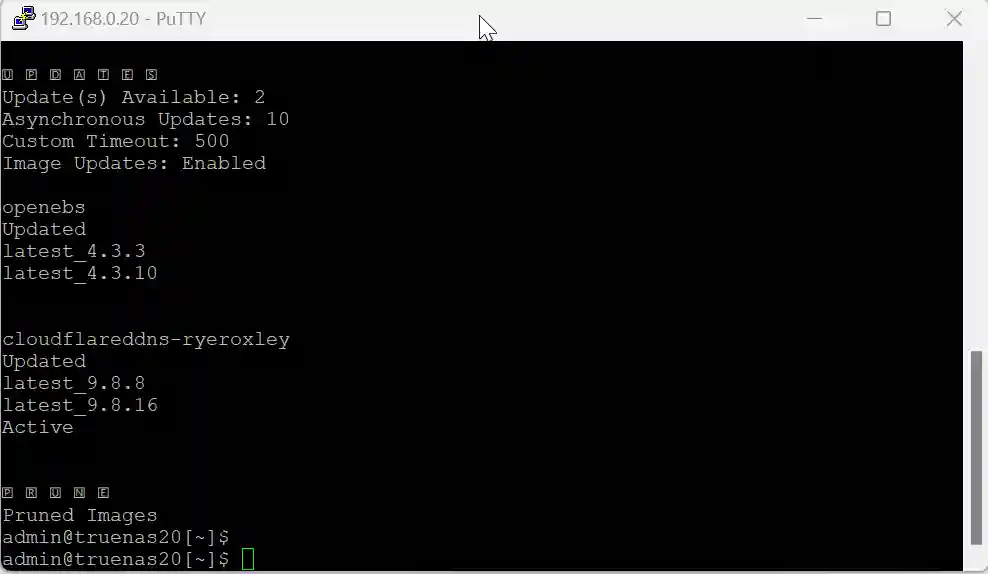
To automate tasks, you need to set up a cron job. Here's how:
- Navigate to System Settings > Advanced.
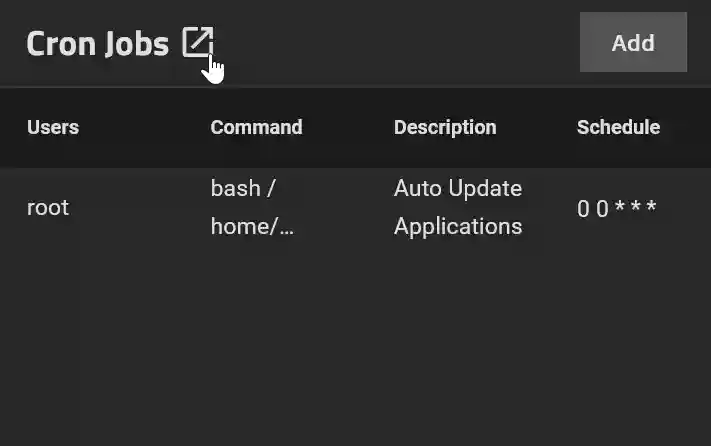
- Select 'Cron Jobs' (accept the warning if prompted).
- If you have existing cron jobs, click 'Add' to create a new one.
In the form that appears:
- Assign a name to the cron job.
- Enter the command you previously tested, omitting 'sudo' but including the 'bash' prefix and the full command path to ensure it executes correctly.
- Choose 'Run as user' root since additional permissions are often necessary for proper execution.
- Under 'Schedule', set the frequency and time for the script to run, such as daily at 12:00 AM.
- If you want to receive email notifications about the cron job’s output and errors, leave 'Hide Standard Output/Error' unchecked.
bash /home/admin/heavy_script/heavy_script.sh update --backup 14 --concurrent 10 --prune --rollback --sync --self-update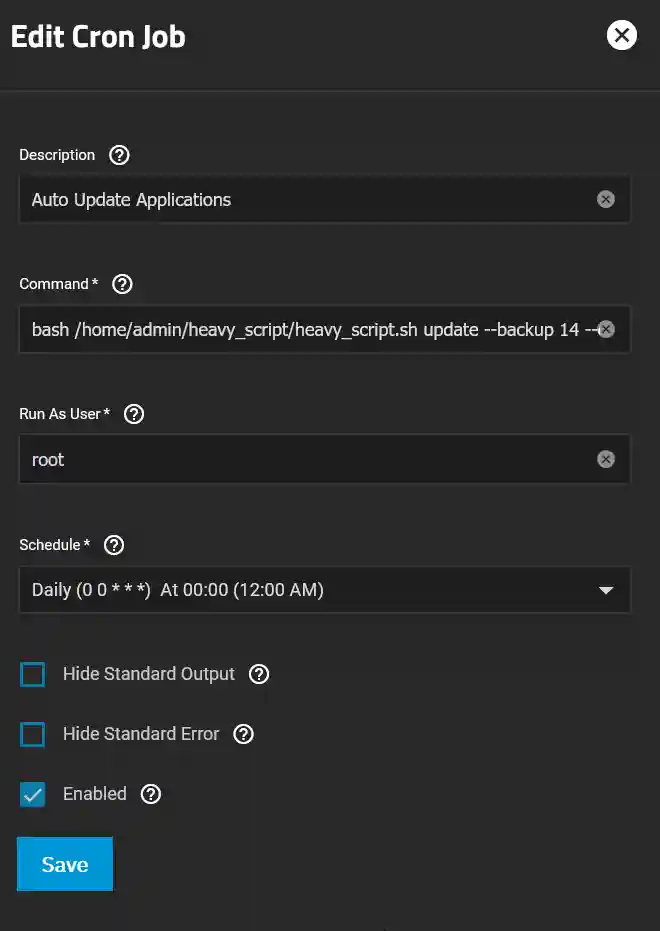
The issue with executing this cron job arises from attempting to update heavyscript as the root user when the admin user originally installed it. Git disapproves of this approach, leading to the error:
fatal: detected dubious ownership in repository at '/home/admin/heavy_script'To allow the script to run successfully, you need an entry in /root/.gitconfig to allow root to update heavyscript. Unter the following command:
sudo nano /root/.gitconfigPaste the following:
[safe]
        directory = /home/admin/heavy_script
Press "Ctrl + X" next, and when prompted, save the file to /root/.gitconfig.
To test the settings, first ensure that the root user has an email address configured. Then, in the TrueNAS Scale GUI, navigate to System Settings > Advanced and open the Cron Jobs panel. Click the dropdown to expand the relevant Cron Job and select "Run Now." Afterward, click "Continue" and then "Close."
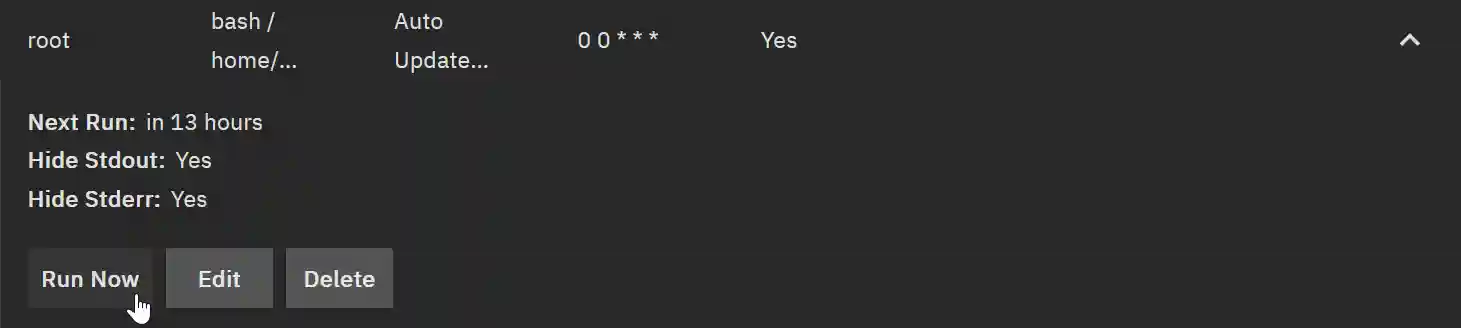
If all goes well you should recieve an email with the line:
"HeavyScript is already the latest version:"
Installing the Prometheus Operator from TrueCharts
The TrueCharts Prometheus Operator does not require a PVC setting, so setting up a dataset is unnecessary.
In the TrueNAS SCALE GUI, navigate to Apps > Discover Apps and search for "Prometheus-operator." (Note: The search function can sometimes be unreliable. If needed, try searching for "operator" instead.) Click on the app, and then click "Install."

There are no options to update, so just click "Install."
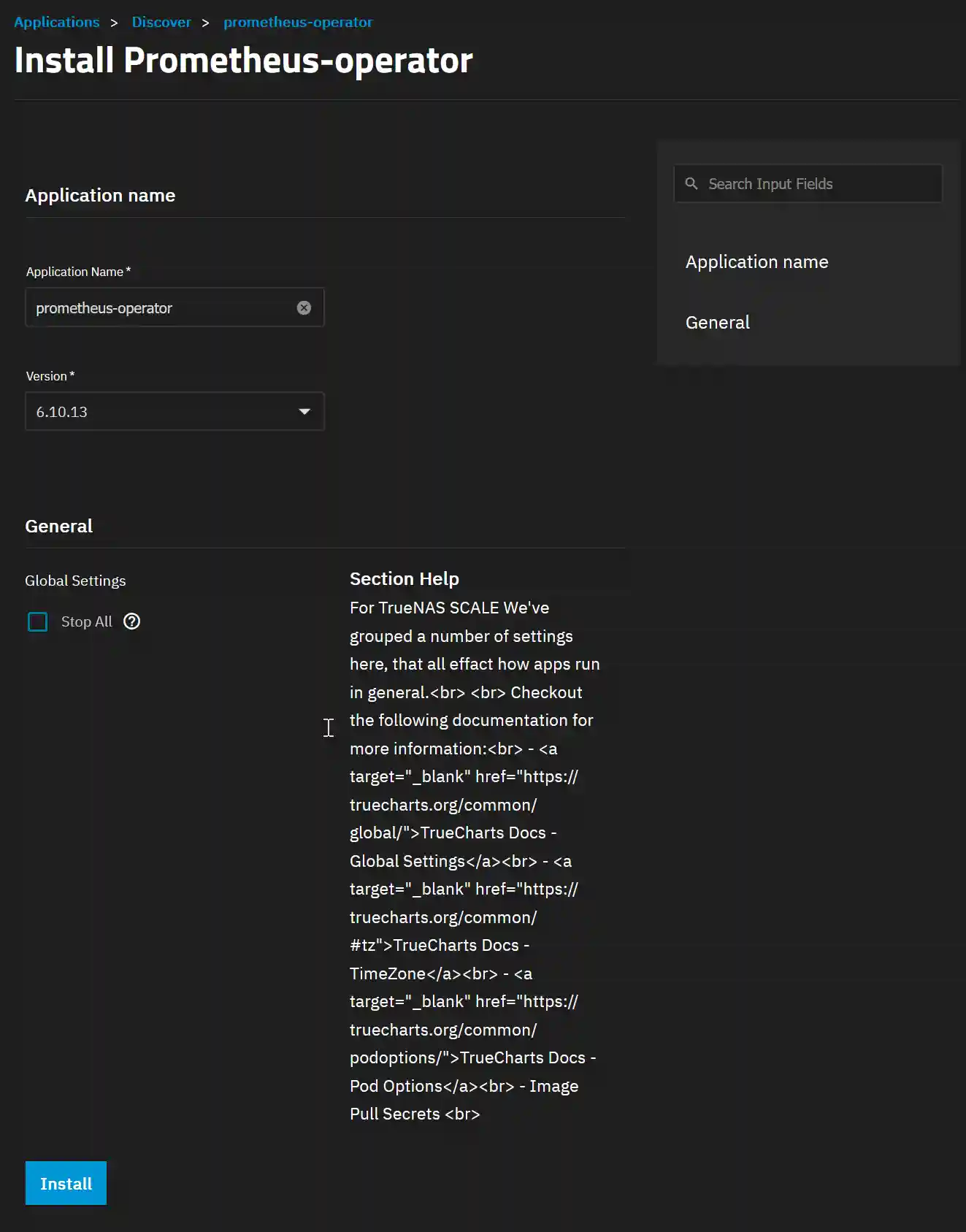
If the operation completes successfully, the app will be displayed as running.

Installing the Cloudnative-Pg from TrueCharts
The TrueCharts Cloudnative-Pg Operator does not require a PVC setting, so setting up a dataset is unnecessary.
In the TrueNAS SCALE GUI, navigate to Apps > Discover Apps and search for "Cloudnative-Pg." Click on the app, and then click "Install."

There are no options to update, so just click "Install."
If the operation completes successfully, the app will be displayed as running.

Installing the Cloudnative-Pg from TrueCharts
The TrueCharts Cloudnative-Pg Operator does not require a PVC setting, so setting up a dataset is unnecessary.
In the TrueNAS SCALE GUI, navigate to Apps > Discover Apps and search for "Cloudnative-Pg." Click on the app, and then click "Install."
There are no options to update, so just click "Install."
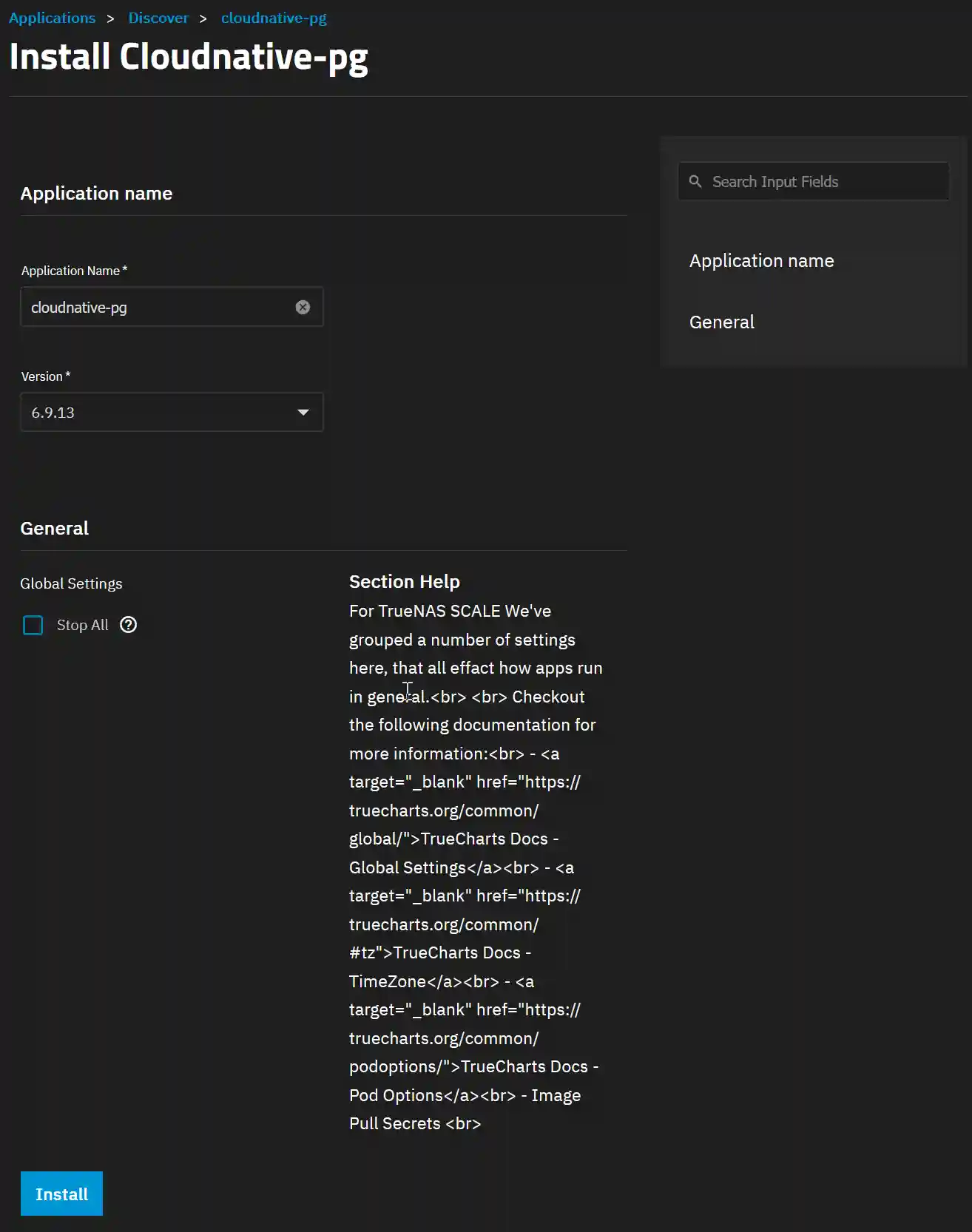
If the operation completes successfully, the app will be displayed as running.
That completes all the prerequisites required for Truecharts.